Setup is done and the script printed SMOKE OK. This page is everything that
comes after: your addresses and logins, the handful of commands you need, how
to get your own files in and out, how to update, and what to do when something
goes wrong. Bookmark it — you won’t need the setup guide again.
Everything with a ./kingo in it is typed in the Ubuntu app, inside the
kingo-pod folder.
Your services
Use your normal Windows browser — WSL2 forwards localhost from Ubuntu to
Windows automatically. If setup had to move a port your addresses differ from
the defaults below — ./kingo credentials always prints the truth for your own
laptop:
| Service | Address | Login |
|---|---|---|
| Langflow | http://localhost:7860 | none (logs in automatically) |
| n8n | http://localhost:5678 | create your own account on first visit |
| JupyterLab | http://localhost:8888 | none |
| JupyterHub | http://localhost:8000 | any username + password kingo2026 |
| Metabase | http://localhost:3000 | admin@kingo.local / Kingo2026! |
| CloudBeaver | http://localhost:8978 | student / Kingo2026! — how to connect |
| Qdrant | http://localhost:6333/dashboard | none |
| PostgreSQL | localhost:5432 |
student / kingo2026 (db: classroom) |
Not all of these run at the same time: in abp mode — what setup installs —
only Langflow, n8n, CloudBeaver, Qdrant and PostgreSQL are on, and
./kingo credentials marks the others as off. See Modes
for switching.
CloudBeaver looks empty at first (“No Connections”) — you have to log in via the gear icon → Login before the class database shows up, and give it the database password once. Two minutes, step by step: Using CloudBeaver.
MCP (Model Context Protocol) is how AI assistants such as Claude Desktop,
Claude Code, or Cursor connect to tools. Point yours at the Jupyter MCP
endpoint http://localhost:4040/mcp (header
Authorization: Bearer kingo-mcp-2026) and it can write and run code in the
class notebook for you. ./kingo mcp prints exactly this.
OpenCode (AI coding in the terminal) runs inside your Ubuntu — install it once with:
curl -fsSL https://opencode.ai/install | bashthen run opencode. The first run asks for an API key; change it anytime with
opencode auth login.
Everyday use
Open the Ubuntu app and go to the class folder:
cd kingo-podthen one command per job:
| Command | What it does |
|---|---|
./kingo up |
start everything (your data stays between runs) |
./kingo down |
stop everything |
./kingo status |
which services are up? |
./kingo credentials |
my addresses + logins |
./kingo mode |
which services run — and ./kingo mode full / abp / … switches (see Modes) |
./kingo memory |
how much memory the containers have and use |
./kingo doctor |
something’s wrong? start here |
./kingo version |
which version am I running? (send this when you ask for help) |
./kingo update |
get the newest class files + images (run it when the instructor announces an update) |
What if I just close the Ubuntu window? Nothing breaks — the stack keeps running in the background: your services stay reachable in the browser, and it keeps using its memory (about 3 GB in abp mode, up to 6 GB in full mode). It stops only when you run
./kingo downor shut down / restart Windows. Your data survives all of these — closed windows,down, reboots. After a reboot, open Ubuntu and run./kingo upagain. (Docker Desktop users: the stack may come back by itself when Docker starts —./kingo statusshows what’s up.)
Modes: which services run
Not every class week needs all nine services, and an 8 GB laptop cannot run them all comfortably. A mode is the set of services that runs — the others are simply off (nothing is deleted; every mode keeps your data):
| Mode | What runs | Memory it wants |
|---|---|---|
abp (what setup installs) |
Langflow, n8n, CloudBeaver, Qdrant, PostgreSQL | 4 GB |
full |
all nine services | 6 GB |
bi |
JupyterLab, JupyterHub, Jupyter MCP, Metabase, CloudBeaver, Qdrant, PostgreSQL | 4.5 GB |
langflow |
Langflow, PostgreSQL | 3.5 GB |
n8n |
n8n, PostgreSQL | 2.5 GB |
./kingo mode shows the current one. Switching is one line, for example:
cd ~/kingo-pod && ./kingo mode fullIt takes about a minute: the stack stops and comes back with the new set of
services. Your notebooks, dashboards, flows and workflows are all still
there — switch back any time with ./kingo mode abp.
On Windows there is no memory setting to make: Windows lets WSL use up to
half of the laptop’s memory by default (4 GB on an 8 GB laptop) and takes
back whatever the containers do not use. abp, langflow and n8n fit that
default; bi and full on an 8 GB laptop will run, but slowly — kingo
says so when you switch. ./kingo memory shows what the containers have and
use, and which modes fit.
Your own files — the shared folder
shared is a folder inside kingo-pod that both you and Langflow can see.
Put your own files there: a SQLite database, a CSV, an Excel sheet, a PDF.
It is one folder with two names, because you and Langflow look at it from different sides:
| Looking from | The folder is called |
|---|---|
| your laptop (Ubuntu, or File Explorer) | ~/kingo-pod/shared |
| inside Langflow | /app/shared |
So a database you drop in as ~/kingo-pod/shared/trials.sqlite is
/app/shared/trials.sqlite when you type it into a Langflow component. It
works the other way round too: whatever Langflow writes there shows up on your
laptop. The folder is made for you — if it is not there, run ./kingo update
once.
Opening a SQLite file in Langflow? The SQL component wants a database URL, not a path, and an absolute path takes four slashes:
sqlite:////app/shared/trials.sqlite.
Where is the folder in Windows? Ubuntu’s files show up in File Explorer. Open Explorer and follow the left sidebar:
Linux → Ubuntu → home → your Linux user name → kingo-pod → shared
Your Linux user name is the one you chose when Ubuntu first started, so your
folder is not called frank like the one in the picture. You can also paste
\\wsl.localhost\Ubuntu\home\ into the address bar and click on from there.
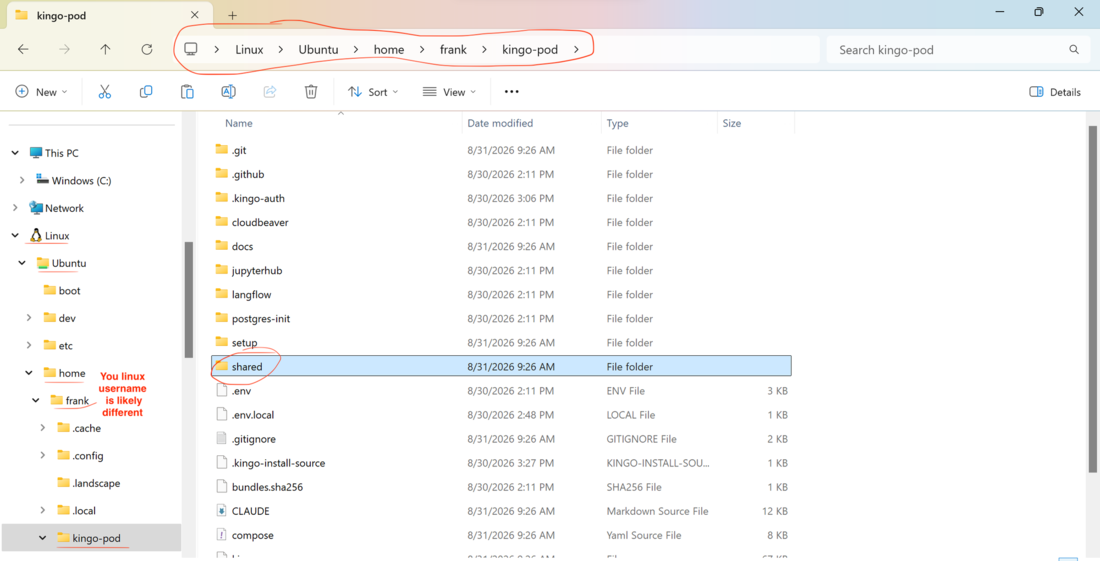
Drag files in and out like in any other folder. Langflow sees them at once.
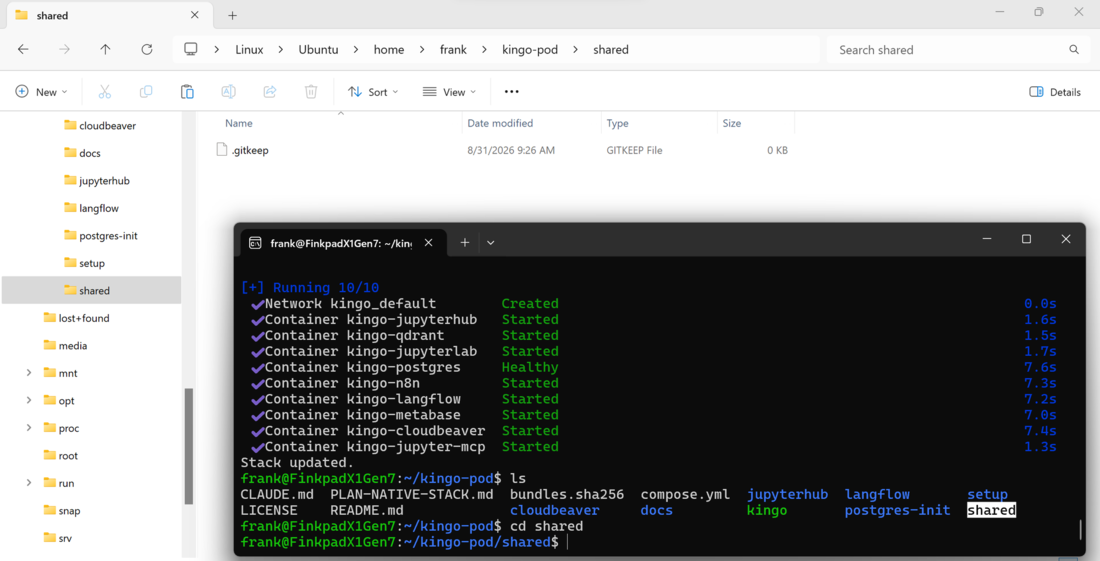
Quickest way there from Ubuntu — this opens the folder in Explorer:
cd ~/kingo-pod/shared && explorer.exe .Then right-click shared in Explorer’s sidebar → Pin to Quick access, and it is one click away from then on.
Keep private files out of it. Anything running inside Langflow can read, change and delete what is in this folder — including a flow someone else built and you imported. Never let it hold your only copy of something. Nothing outside this one folder is reachable from Langflow.
Using Docker Desktop? Files that Langflow itself writes into the folder end up owned by
rootinside Ubuntu — deleting those needssudo rm. Files you put in are never affected. With Podman (the default) this does not happen.
Keeping up to date
One line brings your installation up to date — newest class files, images and rebuilt containers. Safe to run any time in Ubuntu, from any folder:
cd ~/kingo-pod && ./kingo updateRun it whenever your instructor announces an update. It works for every install, however old — nothing has to be downloaded by hand.
If something breaks
Always start with one command (in Ubuntu, inside kingo-pod) — it checks
the usual suspects and tells you what to do:
./kingo doctor| What you see | What to do |
|---|---|
Cannot connect to the Docker daemon at unix:///run/user/…/podman.sock |
Podman’s API socket is off. Run systemctl --user enable --now podman.socket, then ./kingo up. (Current versions of setup and kingo do this automatically — git pull gets you there.) |
Other software on this machine is already using ports Kingo needs |
Run ./kingo fixports, then ./kingo up. Kingo moves itself to free ports — your other software is untouched. Your addresses change; ./kingo credentials shows the new ones. |
Same message right after ./kingo down, but you started nothing new |
No real collision — the port forwarding didn’t let go. First just run ./kingo up again (current kingo frees such leftovers where it can — get it: ./kingo update). If it persists: ./kingo fixports moves past it, or run wsl --shutdown in Command Prompt (Windows) and reopen Ubuntu — note: that stops everything running in WSL (including Docker Desktop’s backend), not just Kingo. |
The Kingo stack is ALREADY RUNNING under your other engine |
Nothing is broken — the stack is up under your other container engine. Follow the two commands the message prints. |
ALL of Kingo's ports are busy |
The stack is most likely already running (possibly under your other engine). Run ./kingo status — if services show up, you’re done, nothing is wrong. |
| I have Docker Desktop, but setup installed Podman | Docker wasn’t running or its WSL integration was off during setup. Both engines work — no need to change anything. To switch anyway: turn on WSL integration for Ubuntu, then ./kingo down (stops the Podman stack first), then echo KINGO_ENGINE=docker >> .env.local, then ./kingo up. |
| Laptop feels slow (8 GB machines) | Run a lighter mode: ./kingo mode abp — or, for one tool at a time, ./kingo mode langflow or ./kingo mode n8n. Windows, the containers and everything you run share the same 8 GB — above all a browser with dozens of tabs, which alone can take 2–3 GB (the Langflow and n8n tabs count too): close what you do not need. ./kingo down when you are not using the stack also helps. |
Ubuntu terminal says ./kingo: No such file or directory |
You’re in the wrong folder. Run cd ~/kingo-pod first. |
| Anything else | ./kingo down, then ./kingo up. If it persists: screenshot the error and ask the instructor / TA. |
FAQ
Why Podman and not Docker? They do the same job and this stack runs identically on both (our tests run on both, every day). We default to Podman because it’s fully open-source and free for everyone — Docker Desktop’s license requires payment at larger companies, and we don’t want the tooling you learn to expire with your student status. If Docker Desktop is already on your laptop, the setup script simply uses it — you are not missing anything either way.
I already use Docker / have my own database. Will this break my stuff?
No. Kingo runs in its own containers (all named kingo-…) with its own
storage. The only possible overlap is a port number — and setup/fixports
resolves that automatically by moving Kingo, never your software.
The passwords are printed in a public repo?! Yes, on purpose. Every
service is reachable only from your own laptop (127.0.0.1 — people on
the same Wi-Fi cannot connect; WSL2’s localhost forwarding keeps it that way).
So these are classroom conveniences, not secrets. The one real rule: the class
shares an n8n encryption key, so never put a real API key into an n8n
workflow you share or export.
Where is my data? Databases, notebooks, and workflows live in container
volumes inside WSL2 and survive ./kingo down, reboots and mode switches.
Only ./kingo reset deletes them (it asks first).
Where did Jupyter and Metabase go? They are off in abp mode, which is
what setup installs — ./kingo status and ./kingo credentials say so.
./kingo mode full turns everything on (about a minute; see
Modes); the instructor announces when a class
week needs it.
Can I give the containers more memory? Not through kingo, and on an
8 GB laptop it would not help: whatever WSL takes, Windows no longer has, so
the fix is a lighter mode (./kingo mode abp). The half-of-the-laptop limit
is Windows’ own setting (a .wslconfig file). If you know your way around
that file, changing it is your own project — kingo neither needs it nor
touches it.
Can I use extra Python packages (say, statsmodels)?
- JupyterLab (
:8888) already ships the data-science standards — pandas, statsmodels, scikit-learn, seaborn, and friends. For anything else, run%pip install <package>in a notebook cell (repeat it if the stack was restarted since). - Langflow: the class set (statsmodels, ragas, …) is built in —
import statsmodelsjust works in Python components. Need one more?./kingo langflow pip install <package>installs it on the spot; it lasts until the next./kingo down+up, so run it again after that (or ask the instructor to add it for everyone). If the install upgraded a compiled package (pyarrow, numpy, pandas — pip lists what it installed), run./kingo restart langflowbefore building a flow: the running Langflow still has the old one loaded, and the build would otherwise fail with “size changed, may indicate binary incompatibility”. - JupyterHub (
:8000) starts a minimal Python without the data packages — use%pip installthere too, or simply do data work in JupyterLab.
Where are my Windows files inside Ubuntu? Your Windows drives are mounted
under /mnt — e.g. C:\Users\you\Documents is /mnt/c/Users/you/Documents.
How it all fits together
┌─ Your laptop (Windows) ────────────────────────────────────┐
│                                                            │
│   Browser, KNIME (on Windows)                              │
│       │  always talk to  localhost:<port>                  │
│       ▼  (WSL2 forwards localhost into Ubuntu)             │
│  ┌─ Ubuntu on WSL2 (Windows' built-in Linux) ─────────┐    │
│  │                                                    │    │
│  │   container engine (Podman or Docker) runs one     │    │
│  │   container per service:                           │    │
│  │   [Langflow] [n8n] [JupyterLab] [Metabase] ...     │    │
│  │       │        │                                   │    │
│  │       └────────┴──► [PostgreSQL]   [Qdrant]        │    │
│  │                                                    │    │
│  │   containers reach each other by service NAME:     │    │
│  │   postgres:5432, qdrant:6333                       │    │
│  └────────────────────────────────────────────────────┘    │
└────────────────────────────────────────────────────────────┘
Two address rules cover everything:
- From your laptop (Windows browser, KNIME): always
localhost:<port>. - From one service to another — e.g. an n8n workflow or Langflow flow
connecting to the database: use the service name as host, not
localhost. PostgreSQL: host
postgres, port5432, databaseclassroom, userstudent, passwordkingo2026. Qdrant:http://qdrant:6333. (Inside a container,localhostmeans the container itself — the most common mistake. Rule 2 is also why moved host ports never affect service-to-service connections.)
KNIME (optional)
KNIME runs on Windows itself, not inside Ubuntu: download KNIME
Analytics Platform from https://www.knime.com/downloads and install it
like any other program. To use the class database, create a PostgreSQL
connection with host localhost, port 5432 (or your moved port from
./kingo credentials), database classroom, username student, password
kingo2026. The stack must be running (./kingo up in Ubuntu) while you use
it.